
What Are Docker Image Layers?
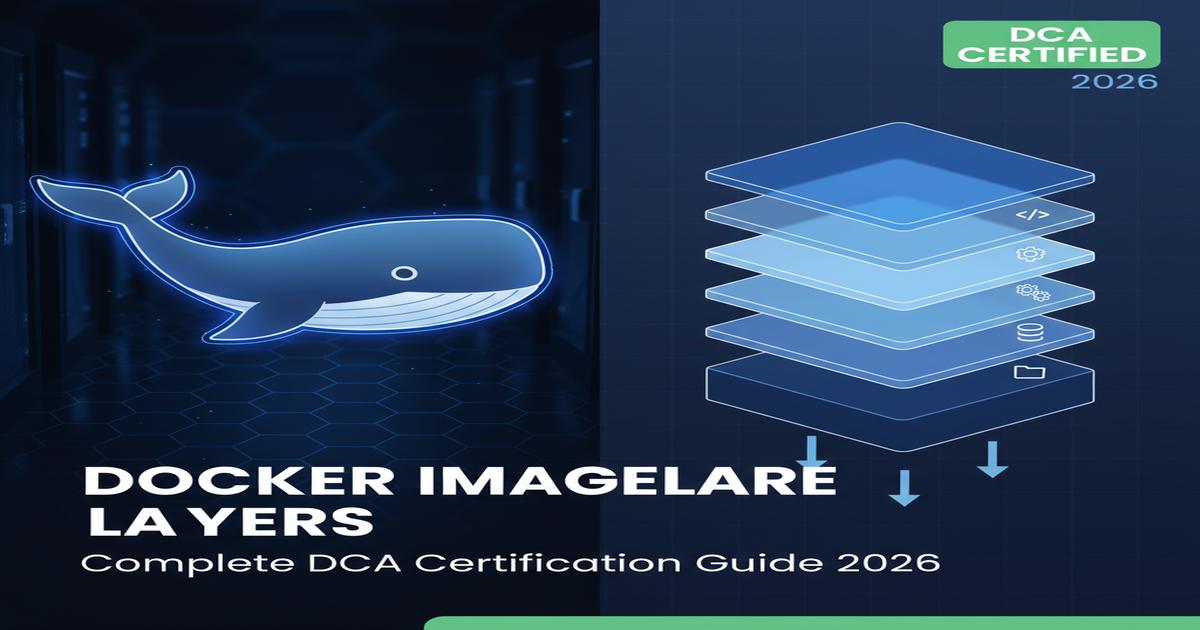
Docker images are not monolithic files but rather collections of read-only filesystem layers stacked on top of each other. Each layer represents a set of filesystem changes - additions, deletions, or modifications - from the layer below it.
A Docker image layer is a read-only filesystem change that gets stacked on top of previous layers to form a complete image. Each layer contains only the differences from the layer below it, making Docker images efficient to store and transfer.
The Layer Stack Architecture
When you build a Docker image, each instruction in your Dockerfile creates a new layer:
Layer 5: Application source code (COPY . .)
Layer 4: Application dependencies (RUN pip install -r requirements.txt)
Layer 3: Python runtime (FROM python:3.11-slim)
Layer 2: Debian slim base libraries
Layer 1: Base operating system filesystem
This layered approach provides several critical benefits:
- Efficient Storage: Multiple containers from the same image share read-only layers, dramatically reducing disk usage
- Faster Deployments: Only changed layers need to be transferred when updating images
- Build Caching: Unchanged layers are reused, speeding up subsequent builds
- Incremental Updates: Changes are isolated to specific layers
Read-Only vs. Writable Layers
Image layers are immutable - once created, they cannot be modified. When you run a container from an image, Docker adds a thin writable layer (also called the "container layer") on top of the image layers.
All changes made to the running container - new files, modified files, deleted files - are written to this container layer. When the container is removed, this writable layer is discarded, leaving the original image layers unchanged.
/var/lib/docker/overlay2/ (overlay2 driver) or /var/lib/containerd/ (containerd).
Union Filesystem and Copy-on-Write
Docker's layer system is powered by union filesystems - a technology that presents multiple separate directories as a single unified view.
OverlayFS: Docker's Storage Foundation
As of Docker 25.x, the overlay2 storage driver was the default for most Linux distributions. It uses OverlayFS, a union filesystem built into the Linux kernel.
OverlayFS works with two main directories:
- lowerdir: Read-only layers (the image layers)
- upperdir: Read-write layer (the container layer)
Container sees:     /app/main.py, /app/config.json, /lib/python3.11...
                            |
                    [Union Mount]
                            |
    UpperDir (RW)   +   LowerDir (RO)   +   LowerDir (RO)   + ...
    (container)         (app layer)         (python layer)
Docker Engine 29.0: The containerd Shift
Important Update (Late 2024): Docker Engine 29.0 and later uses the containerd image store by default for fresh installations. This replaces the overlay2 storage driver with containerd snapshotters.
While the underlying implementation differs, the conceptual model of stacked layers remains the same. The key changes are:
- Improved image management and compatibility with OCI standards
- Better integration with containerd for orchestration platforms
- Maintained backward compatibility with existing Dockerfiles and images
Copy-on-Write (CoW) Mechanism
Docker uses a Copy-on-Write (CoW) strategy that enables containers to share base image layers while maintaining independent writable layers, reducing disk usage by up to 95%.
The Copy-on-Write strategy is central to Docker's efficiency:
- When a container needs to read a file, the filesystem traverses layers from top to bottom until finding it
- When a container needs to modify a file from a lower layer:
- The entire file is copied to the writable container layer
- Modifications are made to this copy
- Subsequent reads/writes use the copied version
This approach means:
- Containers start in milliseconds (no filesystem to copy)
- Multiple containers share the same base image layers efficiently
- The writable layer remains as small as possible
Which Dockerfile Instructions Create Layers?
Not all Dockerfile instructions create filesystem layers. Understanding which do is essential for the DCA exam and for image optimization.
Instructions That Create Filesystem Layers
Only three Dockerfile instructions create filesystem layers with actual size: RUN, COPY, and ADD. All other instructions like ENV, LABEL, and EXPOSE create metadata-only layers with zero size.
| Instruction | Creates Layer | Example |
|---|---|---|
| RUN | Yes (filesystem changes) | RUN apt-get update && apt-get install -y curl |
| COPY | Yes (adds files) | COPY requirements.txt /app/ |
| ADD | Yes (adds files, extracts archives) | ADD app.tar.gz /app/ |
Instructions That Create Metadata-Only Layers
These instructions create layers with 0 bytes - they only add metadata:
| Instruction | Purpose | Example |
|---|---|---|
| FROM | Sets base image | FROM python:3.11-slim |
| ENV | Sets environment variables | ENV NODE_ENV=production |
| LABEL | Adds metadata labels | LABEL version="1.0" |
| EXPOSE | Documents ports | EXPOSE 8080 |
| WORKDIR | Sets working directory | WORKDIR /app |
| USER | Sets runtime user | USER appuser |
| CMD | Sets default command | CMD ["python", "app.py"] |
| ENTRYPOINT | Sets entry point | ENTRYPOINT ["python"] |
Layer Creation Example
Given this Dockerfile:
FROM python:3.11-slim          # Metadata (uses base image layers)
WORKDIR /app                   # Metadata (0 bytes)
ENV PYTHONUNBUFFERED=1         # Metadata (0 bytes)
COPY requirements.txt .        # Layer 1: ~1KB
RUN pip install -r requirements.txt  # Layer 2: ~50MB
COPY . .                       # Layer 3: ~5MB
EXPOSE 8000                    # Metadata (0 bytes)
CMD ["python", "manage.py", "runserver"]  # Metadata (0 bytes)
This creates only 3 filesystem layers on top of the base image layers.
Layer Caching: The 80% Build Time Reduction Trick
Docker's build cache is one of its most powerful features for development productivity. Teams have reported reducing build times from 18 minutes to 3 minutes simply by understanding layer caching.
How Build Caching Works
Docker's layer caching follows a simple rule: once a layer changes, all downstream layers must be rebuilt. Order your Dockerfile from least to most frequently changing instructions.
- For each instruction, Docker generates a cache key based on:
- The instruction itself
- The parent layer's cache key
- For COPY/ADD: checksums of the source files
- If a cache key matches an existing layer, Docker reuses it
- Critical Rule: Once a layer's cache is invalidated, all subsequent layers must be rebuilt
Cache Invalidation Cascade
FROM node:20-alpine           # Cached
WORKDIR /app                  # Cached
COPY package*.json ./         # Cached (if package.json unchanged)
RUN npm install               # Cached (if package.json unchanged)
COPY . .                      # INVALIDATED (source code changed)
RUN npm run build             # MUST REBUILD (downstream)
CMD ["node", "dist/main.js"]  # MUST REBUILD (downstream)
Optimizing for Cache Efficiency
Order by change frequency - put rarely-changing instructions first:
# GOOD: Dependencies before source code
COPY package.json package-lock.json ./
RUN npm ci
COPY . .

# BAD: Source code before dependencies (invalidates cache on every code change)
COPY . .
RUN npm ci
BuildKit Cache Features
Docker BuildKit (enabled by default in recent versions) provides advanced caching:
# Cache mounts for package managers
RUN --mount=type=cache,target=/root/.cache/pip \
    pip install -r requirements.txt

# Bind mounts for build-only files (don't create layers)
RUN --mount=type=bind,source=src,target=/src \
gcc /src/main.c -o /app/mainInspecting Layers: docker history and Dive
docker history Command
The Dive tool analyzes Docker images layer by layer, showing exactly which files were added, modified, or removed in each layer.
The built-in docker history command shows layer information:
# Basic usage
docker history nginx:latest

# Full output without truncation
docker history --no-trunc nginx:latest

# Custom format for specific fields
docker history --format "table {{.ID}}\t{{.Size}}\t{{.CreatedBy}}" nginx:latest

# Quiet mode (just layer IDs)
docker history -q nginx:latest
Output explanation:
IMAGE: Layer ID (truncated SHA256)CREATED: When the layer was createdCREATED BY: The Dockerfile instruction that created itSIZE: Layer size (layers with 0B are metadata-only)
docker inspect for Layer Details
# Get layer digests
docker inspect nginx:latest --format '{{.RootFS.Layers}}'

# Full inspection with layer information
docker inspect nginx:latest | jq '.[0].RootFS'
Dive: Advanced Layer Analysis
Dive is an open-source tool that provides interactive layer exploration:
Installation:
# macOS
brew install dive

# Ubuntu/Debian
wget https://github.com/wagoodman/dive/releases/download/v0.12.0/dive_0.12.0_linux_amd64.deb
sudo dpkg -i dive_0.12.0_linux_amd64.deb

# Docker (no installation)
docker run -ti --rm -v /var/run/docker.sock:/var/run/docker.sock wagoodman/dive nginx:latest
Key Dive features:
- Layer-by-layer file tree navigation
- Files added/modified/removed in each layer highlighted
- Image efficiency score and wasted space metrics
- CI/CD integration for automated checks
CI/CD Usage:
CI=true dive nginx:latestWith a .dive-ci configuration file:
rules:
  lowestEfficiency: 0.95
  highestWastedBytes: 20MB
  highestUserWastedPercent: 0.20
SlimToolkit (formerly DockerSlim)
SlimToolkit automatically optimizes images by analyzing what files are actually used:
# Basic minification
slim build nginx:latest

# With probe commands for dynamic analysis
slim build --http-probe nginx:latest
SlimToolkit can reduce image sizes by up to 30x by removing unused files, libraries, and dependencies.
Optimization Strategies for Smaller Images
Multi-stage builds can reduce image sizes by 90% or more by separating build-time dependencies from the final runtime image.
Strategy 1: Minimize Number of Layers
Combine RUN instructions:
# BAD: 3 layers
RUN apt-get update
RUN apt-get install -y curl
RUN rm -rf /var/lib/apt/lists/*

# GOOD: 1 layer
RUN apt-get update && \
    apt-get install -y curl && \
    rm -rf /var/lib/apt/lists/*
Strategy 2: Multi-Stage Builds
Multi-stage builds separate build-time dependencies from runtime:
# Stage 1: Build
FROM node:20 AS builder
WORKDIR /app
COPY package*.json ./
RUN npm ci
COPY . .
RUN npm run build

# Stage 2: Production
FROM node:20-alpine
WORKDIR /app
COPY --from=builder /app/dist ./dist
COPY --from=builder /app/node_modules ./node_modules
CMD ["node", "dist/main.js"]
Results: A 1GB Node.js image can be reduced to under 100MB.
Strategy 3: Use Minimal Base Images
| Base Image | Size | Use Case |
|---|---|---|
ubuntu:22.04 |
~77MB | Full-featured, familiar |
debian:bookworm-slim |
~74MB | Debian minimal |
alpine:3.19 |
~7MB | Ultra-minimal, musl libc |
distroless |
~2MB | No shell, maximum security |
scratch |
0MB | Static binaries only |
Strategy 4: Proper .dockerignore
A well-structured .dockerignore file can reduce build context from 2GB to 50MB, dramatically speeding up builds and preventing sensitive files from entering images.
# Version control
.git
.gitignore

# Dependencies (will be installed in image)
node_modules
__pycache__
*.pyc
venv/

# Development files
.env
.env.*
*.log
.DS_Store

# IDE
.idea/
.vscode/
*.swp

# Test and docs
tests/
docs/
*.md
!README.md

# Build artifacts
dist/
build/
*.egg-info/
Strategy 5: Clean Up in Same Layer
# BAD: Deleted files still in previous layer
RUN apt-get update && apt-get install -y build-essential
RUN make && make install
RUN apt-get remove -y build-essential  # Still takes space!

# GOOD: Clean up in same layer
RUN apt-get update && \
    apt-get install -y build-essential && \
    make && make install && \
    apt-get remove -y build-essential && \
    apt-get autoremove -y && \
    rm -rf /var/lib/apt/lists/*
Strategy 6: Layer Squashing
Layer squashing combines multiple layers into one, reducing image size when files are created and deleted across layers, but eliminates caching benefits.
# Using Docker's experimental squash flag
docker build --squash -t myimage:latest .
When to squash:
- Files are created and deleted across layers
- Before pushing to a registry
- When caching benefits are not needed
When NOT to squash:
- During development (lose caching)
- When sharing base layers with other images
Common Mistakes and How to Avoid Them
Mistake 1: Wrong Instruction Order
# WRONG: Source code changes invalidate dependency cache
COPY . .
RUN pip install -r requirements.txt

# RIGHT: Dependencies first, then source
COPY requirements.txt .
RUN pip install -r requirements.txt
COPY . .
Mistake 2: Using latest Tag
# RISKY: Non-reproducible builds
FROM python:latest

# SAFE: Pinned version
FROM python:3.11.7-slim-bookworm
Mistake 3: Not Cleaning Package Caches
# BAD: Cache takes space
RUN apt-get update && apt-get install -y curl

# GOOD: Remove cache in same layer
RUN apt-get update && \
    apt-get install -y curl && \
    rm -rf /var/lib/apt/lists/*
Mistake 4: Missing .dockerignore
Without .dockerignore:
.gitfolder (potentially 100s of MB) enters build contextnode_modulesgets copied (then reinstalled anyway)- Sensitive files like
.envmay enter the image
Mistake 5: Running as Root
# INSECURE: Running as root
CMD ["python", "app.py"]

# SECURE: Create and use non-root user
RUN useradd -m -s /bin/bash appuser
USER appuser
CMD ["python", "app.py"]
Mistake 6: Storing Secrets in Layers
# DANGEROUS: Secret visible in layer history
COPY .env /app/
RUN source /app/.env && ./configure
RUN rm /app/.env  # Still visible in previous layer!

# SAFE: Use build secrets (BuildKit)
RUN --mount=type=secret,id=mysecret,target=/app/.env \
    source /app/.env && ./configure
Debugging Layer Issues
# Verbose build output
docker build --progress=plain .

# Build up to specific stage
docker build --target=builder .

# Run shell in intermediate layer
docker run -it <layer-id> sh

# Check which files are in build context
docker build -t test . 2>&1 | head -20
DCA Exam Preparation: Layer Questions
Domain 2 Coverage
The DCA exam tests the following layer-related competencies:
- Display layers of a Docker image
docker history <image>docker inspect <image> --format '{{.RootFS.Layers}}'
- Understand layer composition
- Know which instructions create layers (RUN, COPY, ADD)
- Understand where layers reside (
/var/lib/docker/overlay2/)
- Modify image to single layer
- Multi-stage builds
docker build --squash- Export/import (
docker export/docker import)
- Create efficient images
- Layer ordering for cache optimization
- Combining RUN instructions
- Using .dockerignore
- Minimal base images
Practice Commands for DCA
# Display image layers
docker history nginx:latest

# Show layer details
docker history --no-trunc nginx:latest

# Get layer digests
docker inspect nginx:latest --format '{{json .RootFS.Layers}}'

# Check image size breakdown
docker system df -v

# View storage driver info
docker info | grep -i storage

# Export container filesystem (flattens layers)
docker export mycontainer > container.tar

# Import as single-layer image
docker import container.tar mynewimage:latest
Sample Exam Questions
Q: Which Dockerfile instruction does NOT create a filesystem layer?
- RUN
- COPY
- ENV
- ADD
Answer: C) ENV - ENV creates metadata only
Q: How many layers can a Docker image have?
Answer: 127 layers maximum
Q: What happens when you modify a file from a lower layer in a running container?
Answer: Docker uses copy-on-write to copy the file to the writable container layer before modification
Q: How do you display the layers of a Docker image?
Answer: docker history <image>
Official DCA Resources
Frequently Asked Questions
What is a Docker image layer?
A Docker image layer is a read-only filesystem change that gets stacked on top of previous layers to form a complete image. Each layer contains only the differences from the layer below it, making Docker images efficient to store and transfer. Layers are created by RUN, COPY, and ADD instructions in Dockerfiles.
Which Dockerfile instructions create layers?
Only three Dockerfile instructions create filesystem layers with actual size: RUN, COPY, and ADD. Other instructions like ENV, LABEL, EXPOSE, WORKDIR, USER, CMD, and ENTRYPOINT create metadata-only layers with zero bytes that don't contribute to image size.
How does Docker's layer caching work?
Docker caches each layer during builds. If an instruction's inputs haven't changed, Docker reuses the cached layer. However, when one layer changes, all subsequent layers must be rebuilt. This is why you should order Dockerfile instructions from least to most frequently changing to maximize cache efficiency.
What is the maximum number of layers a Docker image can have?
Docker images can have a maximum of 127 layers, a limitation inherited from the AUFS storage driver that persists across storage backends. While this limit rarely affects modern, well-optimized images, it's important to combine RUN instructions and use multi-stage builds to stay well below this limit.
How can I reduce Docker image size using layers?
Use multi-stage builds to separate build dependencies from runtime, combine RUN commands with && to reduce layers, use minimal base images like Alpine, add a .dockerignore file to exclude unnecessary files, and clean up package manager caches in the same layer where you install packages.
What is Copy-on-Write in Docker?
Copy-on-Write (CoW) is Docker's strategy where containers share base image layers but maintain independent writable layers. When a container needs to modify a file from a lower layer, the entire file is copied to the writable container layer before modification. This enables containers to start in milliseconds and reduces disk usage by up to 95%.
How do I view Docker image layers?
Use the docker history command to view image layers: docker history nginx:latest. For more detailed analysis, use the Dive tool which provides interactive layer exploration, file tree navigation, and image efficiency metrics. You can also use docker inspect to get layer digests.
Conclusion
Docker image layers are the fundamental building blocks that make containerization efficient and practical. Understanding how layers work is essential for:
- Passing the DCA exam: Domain 2 (20% of exam) heavily tests layer concepts
- Optimizing build times: Proper layer ordering can reduce builds from 18 minutes to 3 minutes
- Reducing image sizes: Multi-stage builds can achieve 90% size reductions
- Improving deployment speed: Smaller images with shared layers transfer faster
The key takeaways to remember:
- Only RUN, COPY, and ADD create filesystem layers
- Layer caching invalidates downstream when any layer changes
- Copy-on-Write enables containers to share image layers efficiently
- Multi-stage builds are the most powerful optimization technique
- Docker Engine 29.0+ uses containerd by default, but layer concepts remain consistent
Next Steps
- Docker Official Documentation: Understanding Image Layers
- Dive Tool for Layer Analysis
- DCA Preparation Guide
- Watch Video Tutorials on Gheware DevOps AI YouTube Channel
Ready to Master Docker for the DCA Exam?
Subscribe to our YouTube channel for hands-on Docker tutorials, DCA exam prep, and DevOps best practices.
Subscribe to Gheware DevOps AI